Screen resolution is the number of pixels your laptop display can show, written as Width × Height (example: 1920 × 1080, also called Full HD or 1080p). Knowing your laptop’s screen resolution helps you:
- Choose the right display settings for sharp images and text.
- Select correct wallpaper, videos, or games.
- Troubleshoot blurry screens or scaling issues.
- Buy compatible external monitors or projectors.
- Check display quality when buying new or used laptops (very common in India on Amazon, Flipkart, or local markets).
Follow these simple steps to identify the current display resolution of your laptop. The instructions apply to most modern laptops and operating systems.
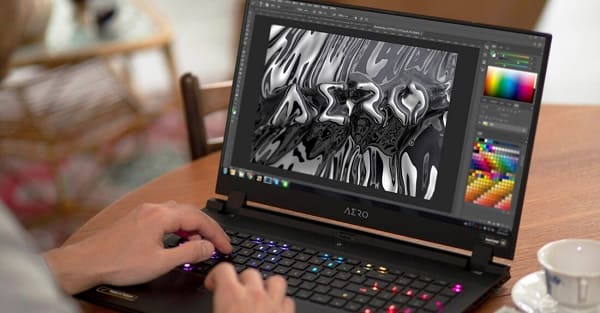
Why Check Screen Resolution?
- Many students and professionals use laptops for online classes, coding, video editing, and office work.
- Wrong resolution can make text blurry or apps look too small/big.
- Higher resolution (like 4K) gives better clarity but may need good graphics.
- Popular resolutions in India: HD (1366×768), Full HD (1920×1080), and sometimes 2K/4K on premium laptops (Dell, HP, Lenovo, ASUS).
1. Check Screen Resolution on Windows (Easiest & Most Common)
Windows 10 and Windows 11 are used on most laptops in India.
Method 1: Using Display Settings (Recommended)
- Right-click on the desktop (empty area).
- Select Display settings.
- Scroll down to Display resolution.
- You will see the current resolution (e.g., 1920 × 1080) with a dropdown of all supported resolutions.
Alternative path:
- Press Windows key + I → System → Display → Look under Display resolution.
Method 2: Using Keyboard Shortcut
- Press Windows key + P (for Project) → This shows display options.
- For detailed info, use the Settings method above.
Method 3: Using Command Prompt (Quick for Tech Users)
- Press Windows key + S, type cmd, and open Command Prompt.
- Type the following command and press Enter: wmic path Win32_Video Controller get Current Horizontal Resolution, Current Vertical Resolution
- You will see numbers like:
Current Horizontal Resolution
Current Vertical Resolution
1920X1080
Method 4: System Information
- Press Windows key + R, type msinfo32, and press Enter.
- Go to Components → Display.
- Check Current Resolution or Resolution.
2. Check Screen Resolution on macOS (MacBook)
- Click the Apple logo () in the top-left corner.
- Select About This Mac.
- Click on Displays tab.
- You will see the resolution clearly, e.g., “2560 x 1600 Retina”.
Alternative: Go to System Settings → Displays → Current resolution is shown.
3. Check Screen Resolution on Linux (Ubuntu, etc.)
Linux is popular among developers and students.
- Open Settings → Displays.
- Current resolution is shown under the display name.
Using Terminal:
Bash xrandr | grep \*
or
Bash xdpyinfo | grep dimensions
4. Check Resolution Using Browser (Online Method)
- Open Google Chrome or any browser.
- Go to any of these free websites:
https://whatismyscreenresolution.net/
https://screenresolutiontest.com/
https://www.whatismybrowser.com/ - The website will instantly show your current screen resolution.
This method works on any laptop (Windows, Mac, Linux) and is useful when you cannot access settings.
5. Additional Useful Information
- Recommended Resolution: Usually the highest one marked as “Recommended” in settings.
- Scaling: In Windows, you can adjust Scale and layout (125% or 150% is common for high-resolution laptops).
- External Monitor: When connected, check resolution for both screens separately in Display settings.
- Refresh Rate: Also check under Advanced display settings for smooth experience (60Hz, 120Hz, etc.).
Brand-Specific Tips (Popular in India)
- Dell, HP, Lenovo: Use the Windows methods above. Many come with pre-installed software (Dell SupportAssist, HP Support Assistant, Lenovo Vantage) that shows display details.
- ASUS, Acer, MSI: Same Windows steps. Gaming laptops often have higher refresh rates.
- Used Laptops: Always check resolution before buying from OLX or local shops. Ask the seller to show in Display settings.
- Chromebook: Click time in bottom-right → Settings → Device → Displays.
Common Problems & Troubleshooting
- Blurry Screen: Set resolution to “Recommended”. Adjust scaling.
- Resolution not changing: Update graphics drivers (Intel, NVIDIA, AMD) from official websites.
- Low resolution after update: Restart laptop or reinstall display drivers.
- Laptop shows wrong resolution: Check if it is in battery saving mode or connected to external display.
- For Students: Use Full HD (1920×1080) for comfortable online classes on Zoom/Teams.
- Power Cuts: Common in India — resolution remains the same after restart.
Extra Tips for Users
- Buying New Laptop: Look for at least Full HD (1920×1080) display. Avoid 1366×768 on new models.
- Budget Laptops: Many under ₹40,000 have HD resolution.
- Gaming/Editing: Choose higher resolution + good refresh rate.
- Eye Comfort: Use Night Light (Windows) or f.lux app to reduce strain during late-night study.
- Maintenance: Keep screen clean and avoid direct sunlight to maintain display quality.
- Multiple Displays: Useful for working professionals — extend or duplicate screens easily.
- Interview/Exam Prep: Sometimes asked in basic computer knowledge tests.
Conclusion
Checking your laptop’s screen resolution is very easy and takes less than a minute. The simplest ways are:
- Right-click desktop → Display settings (Windows)
- Apple menu → About This Mac (MacBook)
- Online website tool
Save this article or take a screenshot of your resolution for future reference. Knowing your screen resolution helps you get the best performance and visual experience from your laptop.
Share this guide with your friends, family, classmates, or colleagues — especially students buying new laptops or facing display issues. Clear and sharp display makes studying, working, and entertainment much more enjoyable!
Note: Steps may vary slightly depending on your laptop model and operating system version. For the most accurate information, refer to your laptop brand’s official support website (Dell, HP, Lenovo, etc.).